THE FRAME STUDIO GUIDE
How to add your own art to Samsung The Frame
Take your finished artwork from Frame Studio to Art Mode, using your phone or a USB drive.
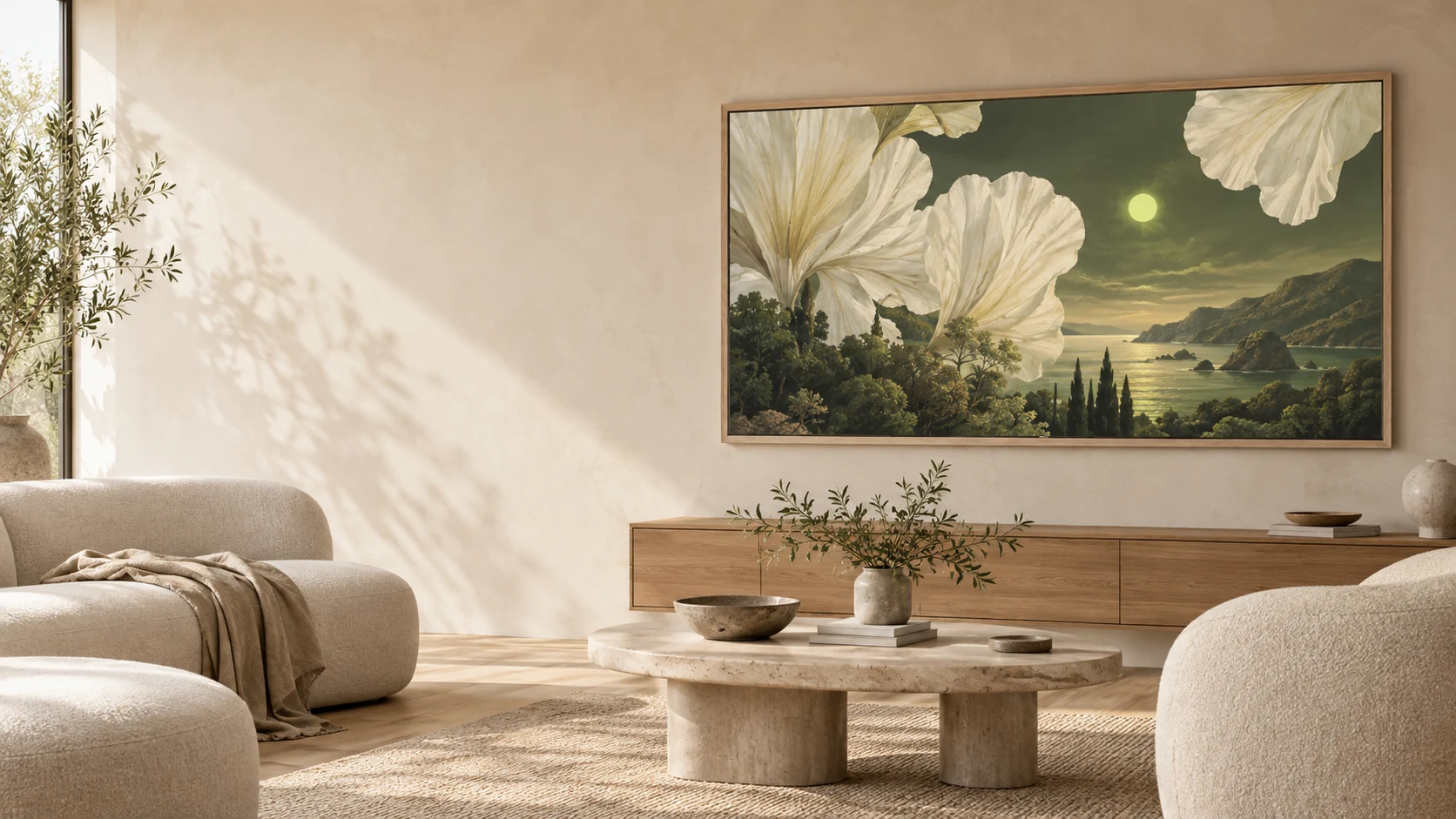
Download the finished artwork first
In Frame Studio, open a finished artwork and download its 4K JPEG. For an artwork someone shared with you, the public page has a Download 4K JPEG button. The download contains the image itself, without the decorative preview frame.
On an iPhone, Save to Photos opens the available sharing or saving controls. If your browser does not offer that option, open the full-resolution image and use the browser’s image-saving action. Check that the file is in Photos before switching to SmartThings. Avoid using a screenshot of the preview.
Use SmartThings on your phone
Samsung documents personal-photo uploads through SmartThings for supported Frame TVs. Register your TV in SmartThings and use the same Samsung account and network setup required by your model.
- Open SmartThings and select your Frame TV.
- Open Art Mode and choose Add Your Photos.
- Select your downloaded artwork and save it to The Frame.
- Choose the saved image for display, then adjust the matte and presentation to suit your room.
Or transfer the file with a USB drive
Samsung also documents USB photo imports on supported models. Copy the JPEG to a compatible drive, connect it to the TV or One Connect Box, and open the connected device from Art Mode’s collection controls. Select the image and save it to your photos before removing the drive.
Menu labels and available options vary by TV year, region, and software version. Use the guide for your specific model if the controls differ. Frame Studio prepares the file; it does not remotely control the TV or sign into your Samsung account.
If the artwork does not look right
If the file is missing from the phone picker, confirm that it was saved to Photos rather than only to Files, and review the photo access granted to SmartThings. If you cannot find the TV, check its connection and registration in SmartThings.
For cropping or unexpected borders, compare the downloaded file with the studio preview and check the TV’s matte controls. For a soft image, go back to the original rather than repeatedly resizing a downloaded copy. For color or brightness differences, judge the result on the TV in the lighting where you normally use Art Mode.
Your artwork and the Samsung Art Store are separate
Frame Studio is an independent tool for making and preparing images. A Frame Studio membership does not include Samsung Art Store access, hardware, or a TV connection service. Check Samsung’s current requirements for your model and the features you plan to use.
Manufacturer guidance
Model details can change. These official instructions were checked on September 27, 2026.
Ready to make it yours?
Create artwork or prepare a photo in the studio. See current credits and membership pricing.
Open Frame Studio