THE FRAME STUDIO GUIDE
Samsung Frame TV art size: dimensions, cropping, and 4K exports
Get the proportions right before you put a photo or artwork on your wall.
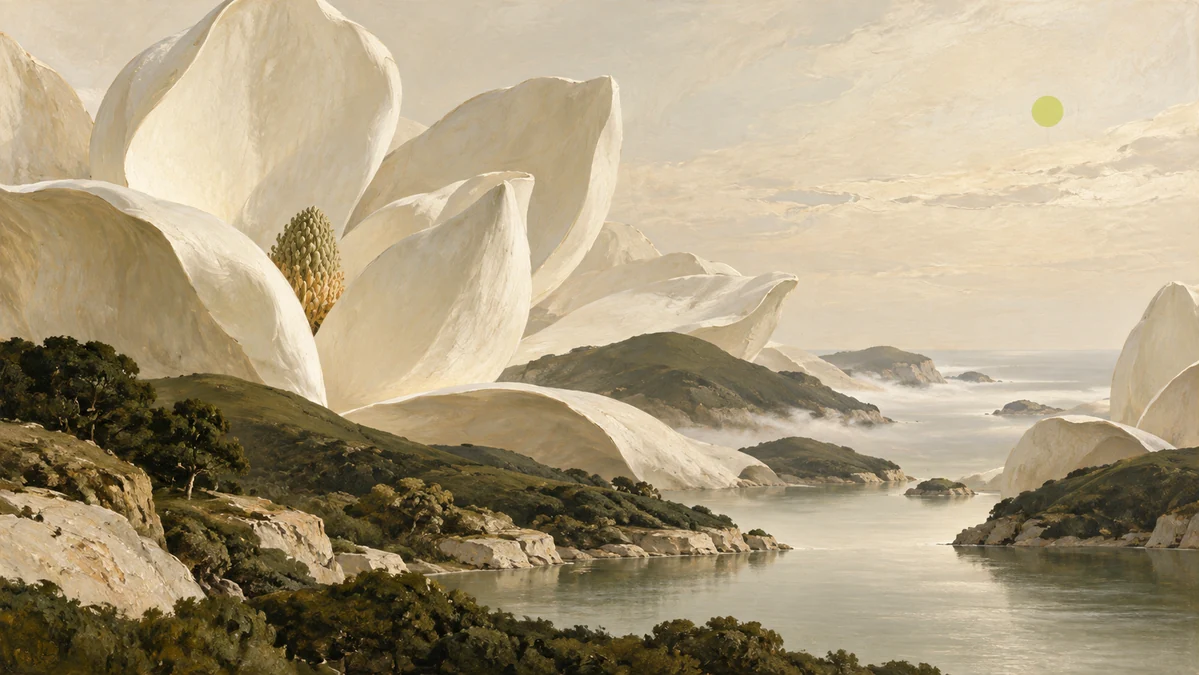
Start with 3840 × 2160 pixels for a 4K screen
Frame Studio exports artwork at 3840 pixels wide by 2160 pixels high: a landscape 16:9 image. Those dimensions match a 4K display. The image file does not need to change just because the physical screen is larger.
Check the specifications for your exact TV before downloading. Not every Frame model has the same resolution; smaller Full HD models need a different target. Our current preset is intended for 4K landscape displays. Pixel dimensions matter here; a print-oriented DPI setting does not add detail to a TV image.
Choose between cropping and keeping the whole image
A portrait photo cannot fill a landscape screen without either cropping the photo or leaving space around it. Decide which matters more: an edge-to-edge image or keeping every part of the original.
Choose a crop when the subject has breathing room. Move the focal point so faces, horizons, and important objects stay inside the preview. Use the contain option when you want the complete composition, with a border filling the remaining space. The frame finish shown in the studio is a preview; it is not baked into the exported image.
Use the best original you have
Start from the original photo or downloaded artwork rather than a screenshot or a compressed messaging-app copy. Upscaling increases the number of pixels, but it cannot guarantee recovery of fine detail that was missing from the source.
Inspect the preview for soft edges, distracting noise, and overly sharp outlines. A quiet landscape can be forgiving at TV viewing distance; a close-up face or small lettering deserves more scrutiny. Cropping deeply into a large image can leave fewer useful pixels than you expect.
Prepare your image in Frame Studio
Use the Re-sizer for an existing image, or prepare an image you created in the studio.
- Sign in and open Re-sizer. Choose a JPEG, PNG, WebP, HEIC, or HEIF photo.
- Adjust the composition in the TV preview. Compare crop and contain before confirming.
- Prepare the 4K export. Download the JPEG for transfer; a PNG master is also available.
- Import the file with the upload feature supported by your TV. Review its matte and display settings on the actual screen.
A border on the TV can be a display setting
The TV’s own matte settings are separate from the pixels in your file. An exact 16:9 export provides the right proportions, but the final presentation still depends on the model, software, and selected Art Mode options. If you see an unexpected border, check those settings as well as the crop in your image.
Manufacturer guidance
Model details can change. These official instructions were checked on September 27, 2026.
Ready to make it yours?
Create artwork or prepare a photo in the studio. See current credits and membership pricing.
Open Frame Studio