LG · THE FRAME STUDIO GUIDE
How to add your own photos and art to LG Gallery+
Choose the photo source supported by your LG TV, with a clear distinction between Gallery+ and older Gallery menus.
Open LG Gallery+, sign into your LG Account, and use Photos with a supported source: LG ThinQ, a linked Google Photos account, or connected external storage.
Applies to: LG Gallery TV and other compatible TVs with Gallery+ on webOS 25 or later. Availability depends on the model and country; older Gallery instructions are separate.
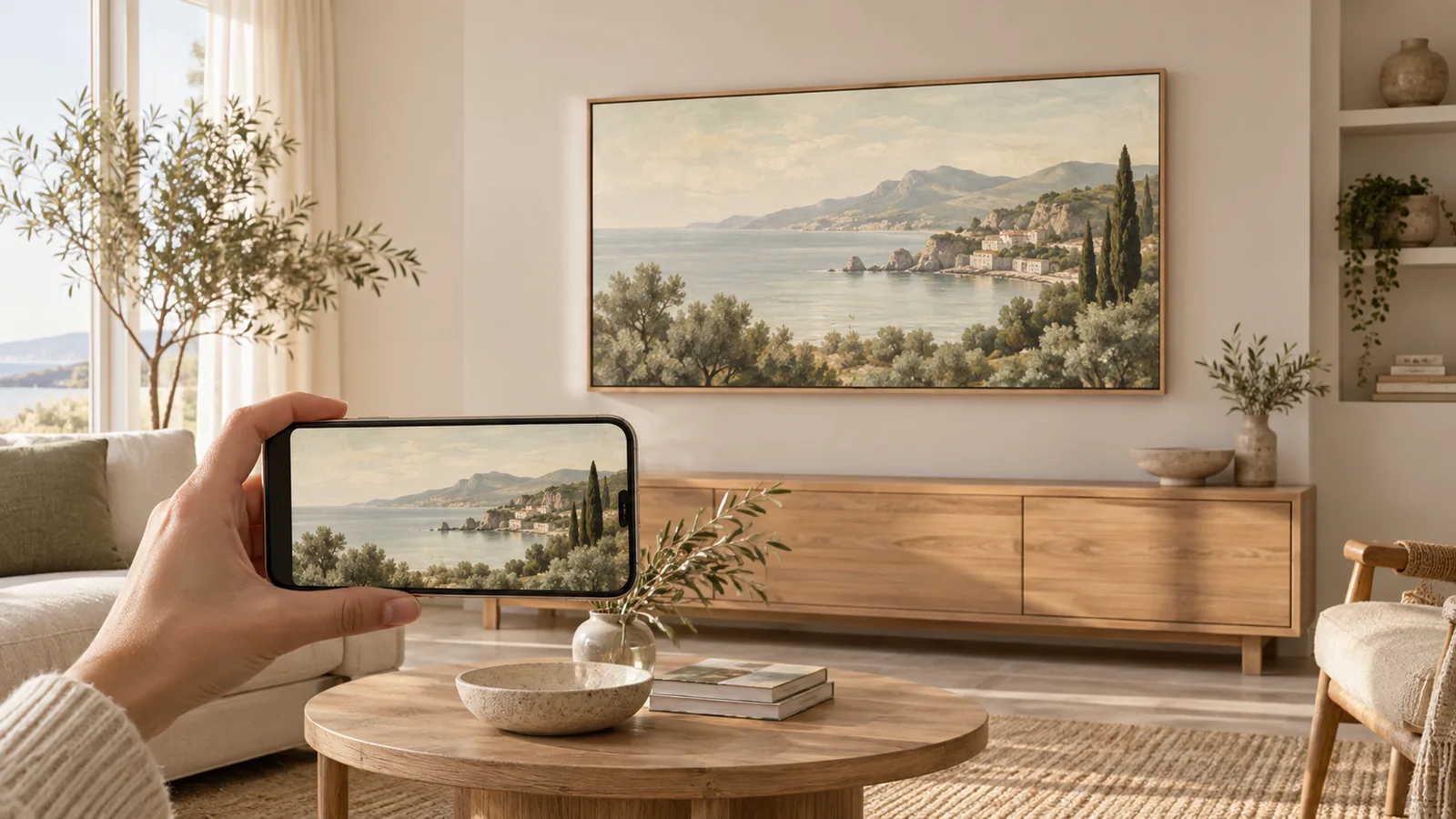
- 01 · Prepare your image
Download the artwork file with the crop you want.
- 02 · Follow your TV’s guide
Use its supported app, photo album, or USB import.
- 03 · Make it feel at home
Review the fit and presentation on your own screen.
Before you start
- Your downloaded artwork
- An LG Account for Gallery+
- A supported photo source shown by your TV
Start with LG Gallery+
Check the actual app name on your Home screen. “Gallery” in a TV’s design or product name alone does not identify its software features.
- Press Home on the remote and open LG Gallery+.
- Open My Page in the upper-right corner.
- Choose Go to LG Account and sign in.
- Use Photos and choose a supported source. Follow its connection prompts, then select your artwork as wallpaper.
Prepare the artwork before you transfer it
Download the finished image, rather than taking a screenshot of its preview. For a landscape 4K TV, Frame Studio prepares a 3840 × 2160 JPEG. Open the download once to check that it contains the artwork you want, with the crop you intended.
Keep an unedited original. Give the TV copy a recognizable name, such as olive-coast-4k.jpg, so it is easy to find beside your family photos. If you added a border to the file, remember that a second matte on the TV will make the artwork smaller.
Choose where the photo comes from
LG lists three photo sources: a mobile device connected through LG ThinQ, Google Photos with your Google Account linked, and connected external devices. Use the source offered by your TV; pairing screens and storage support vary.
For a phone transfer, save the file where the photo picker can see it. For Google Photos, keep a separate album containing only the artwork you want on display. For external storage, put an easily identified copy of the image on the drive and check the model’s supported formats first.
Older TV? Match the webOS generation
LG’s older guide gives a specific personal-photo route for 2017 webOS 3.5 and 2018 webOS 4.0 TVs: Home → Gallery → My Photos → Add, then select images from connected storage and finish with Add or Complete.
Do not assume that route exists on every later Gallery app. LG’s separate instructions for webOS 4.5 and later focus on selecting themes. If your older TV has no personal-photo control, consult its model manual before treating a theme gallery as an upload tool.
Finish the presentation on the TV
While Gallery+ content plays, the on-screen downward control opens options for settings such as slideshow timing and background music. Available controls depend on the model.
Choose the composition first, then review the room at its normal lighting level. A border in the exported JPEG stays part of the image; if it looks too wide alongside the TV’s presentation, make a new export from your original.
If the photo or app is missing
Confirm that the selected source actually contains the image. A photo in your phone’s Files folder is not automatically in Google Photos, and signing into an LG Account does not by itself select a Google album.
If Gallery+ is absent, check your model’s software and regional support. If you see a paid catalog offer, review which feature it applies to before subscribing. Your Frame Studio account prepares artwork independently of LG’s TV services.
Sources and model notes
These manufacturer instructions were checked on September 27, 2026. Menu names and availability can change with your model, country, and software. This guide is based on documentation, not a hands-on test of every TV.
One image. A different room.
Create artwork or prepare a photo in the studio, then come back here to put it on your TV. See credits and membership pricing.
Open Frame Studio