THE FRAME STUDIO GUIDE
How to use your own artwork as a Google TV screensaver
A shared setup guide for compatible Google TVs, including the TCL and SKYWORTH workflows linked from our brand guides.
Save your art in a Google Photos album, select it as the Ambient Mode source, and confirm the album on your TV.
Applies to: Google TVs with the Google Photos source in Ambient Mode. This is a screensaver workflow, separate from a manufacturer’s built-in art gallery.
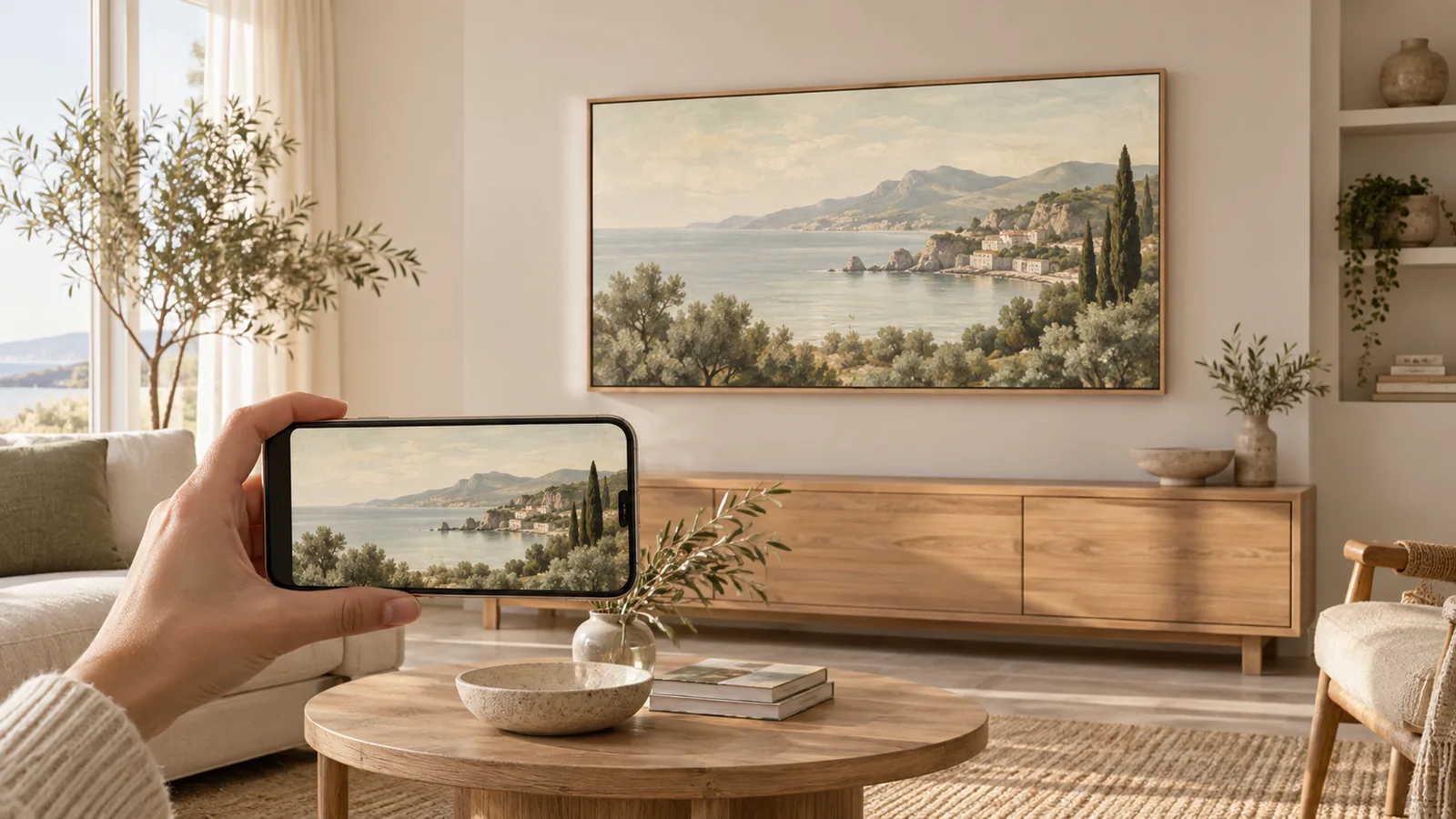
- 01 · Prepare your image
Download the artwork file with the crop you want.
- 02 · Follow your TV’s guide
Use its supported app, photo album, or USB import.
- 03 · Make it feel at home
Review the fit and presentation on your own screen.
Before you start
- A Google Photos album containing your artwork
- A Google TV with Ambient Mode
- Your phone or Google Account PIN for verification
Prepare a small album just for the TV
Download the artwork file and add it to Google Photos. Make an album with a clear name, such as Living Room Art, and include only the images you want visitors to see on the screen.
Start with one distinctive image while you set things up. It is easier to confirm the right account and album with a single recognizable artwork than with a large mixed photo library. You do not need to publish a public Frame Studio share page to prepare a personal album.
Choose the album in Ambient Mode
- From the Google TV Home screen, open Settings → System → Ambient Mode.
- Open Settings → Source and choose Google Photos.
- Verify your identity using the phone alert or your Google Account PIN.
- Select the album you prepared, then choose Confirm.
Make it feel more like artwork
Under Google Photos settings, Basic shows images full-screen; Dynamic uses animations and collages on supported devices. Adjust Slideshow speed for how long each image remains visible.
Use On-screen Info to choose whether time, weather, attribution, and device information appear. While Ambient Mode is running, the remote’s Down arrow opens its settings.
Give the screensaver a good source file
For a landscape 4K screen, a 3840 × 2160 source gives you a sensible starting canvas. Keep the main subject away from the extreme edges, and check the displayed result after any crop. Google Photos and the TV’s playback can affect presentation; a 4K upload is not a guarantee of pixel-for-pixel 4K delivery.
Avoid exporting a decorative TV frame inside the image if you already have a physical bezel. A simple image or a considered border usually gives you more control than stacking several framing effects.
If an image is skipped or the wrong album appears
Recheck the selected album and the account that owns it. Google’s Curate photos setting can filter the selection, so inspect that setting if some images are missing.
Confirm that the artwork is actually in Google Photos, not just downloaded to a phone. Open the album on the phone or computer and inspect the image itself. Keeping the TV album small also makes it easier to notice an accidental extra photo before it appears in your room.
Return to your TV’s guide
Use the brand guide for the distinction between this screensaver and the TV’s native art collection. Menu availability depends on your TV software and region.
Sources and model notes
These manufacturer instructions were checked on September 27, 2026. Menu names and availability can change with your model, country, and software. This guide is based on documentation, not a hands-on test of every TV.
One image. A different room.
Create artwork or prepare a photo in the studio, then come back here to put it on your TV. See credits and membership pricing.
Open Frame Studio