TCL · THE FRAME STUDIO GUIDE
How to display your own art on TCL NXTFRAME and NXTVISION
Start with the software on your TV: TCL’s gallery and Google TV’s personal-photo screensaver use different routes.
For TVs using T-Exhibition, TCL directs personal photos to Google TV’s Ambient Mode. Some NXTFRAME versions also offer gallery uploads; check the controls and manual for your exact model.
Applies to: NXTFRAME / NXTVISION A300W and supported TCL Google TVs. Regional gallery apps and software versions differ.
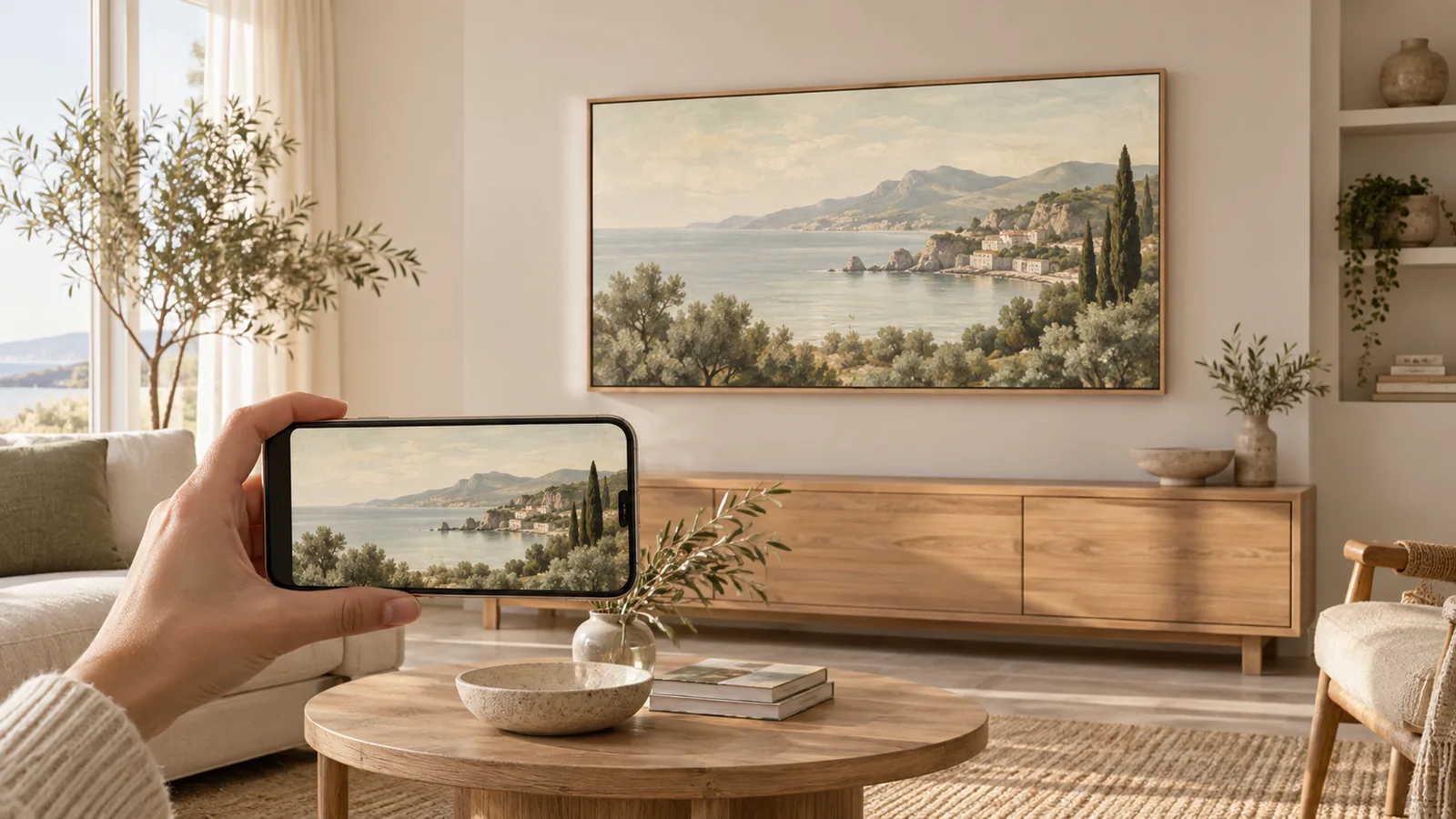
- 01 · Prepare your image
Download the artwork file with the crop you want.
- 02 · Follow your TV’s guide
Use its supported app, photo album, or USB import.
- 03 · Make it feel at home
Review the fit and presentation on your own screen.
Before you start
- A landscape artwork file
- A Google Photos album for the Ambient Mode method
- Your TCL model number if you want to check native gallery import support
Identify the app before choosing a method
Press Home and inspect Apps or Your Apps. If you see T-Exhibition, TCL’s current support guide describes it as a collection of curated and AI artwork, separate from Google’s screensaver. That guide sends personal photos through Ambient Mode.
TCL also advertises wireless and USB personal-art uploads for NXTFRAME. Its product announcement does not provide a single import menu sequence across firmware versions. A video showing someone else’s Art Gallery menu may therefore differ from yours.
Prepare the artwork before you transfer it
Download the finished image, rather than taking a screenshot of its preview. For a landscape 4K TV, Frame Studio prepares a 3840 × 2160 JPEG. Open the download once to check that it contains the artwork you want, with the crop you intended.
Keep an unedited original. Give the TV copy a recognizable name, such as olive-coast-4k.jpg, so it is easy to find beside your family photos. If you added a border to the file, remember that a second matte on the TV will make the artwork smaller.
Display your own artwork through Google Photos
For the T-Exhibition workflow documented by TCL, place the finished artwork in a dedicated Google Photos album. On the TV, go to Settings → System → Ambient Mode and choose Google Photos as the source. Select the album you want to display.
Use our Google TV walkthrough for account verification, album selection, full-screen presentation, and slideshow controls. This displays a personal-photo screensaver; it does not import the image into T-Exhibition.
If your TV has a personal Art Gallery import
Open your gallery and look for its own personal-photo or import feature. If it offers a phone transfer, use the pairing instructions on that screen. If it offers USB import, copy the downloaded JPEG to a compatible drive and use the gallery’s USB controls.
These are conditional paths, not a promise that every A300W has the same buttons. Match your model number and country to TCL’s support documentation before installing an app or reformatting a drive. Opening a JPEG in a media player also does not prove it has been saved into the art gallery.
Check the screen that will actually run
After setup, let the TV enter the display mode you intend to use. Check that it shows your selected artwork, rather than a built-in collection or a different album. Keep a note of which route you used so it is easy to replace the image later.
For a calm presentation, use a small collection with a consistent palette. Give fine details and text a close look on the TV before adding more images. A file that looks sharp in a small phone preview can still be too soft for a large screen.
Why the artwork may not appear in T-Exhibition
Selecting a Google Photos album changes the Google screensaver. It does not populate TCL’s separate T-Exhibition collection. Return to the feature you configured when checking the result.
If your TV has a different operating system or an entirely different gallery, use its regional model manual. Avoid repeatedly resetting the TV just because the menu labels in another model’s tutorial do not match.
Sources and model notes
These manufacturer instructions were checked on September 27, 2026. Menu names and availability can change with your model, country, and software. This guide is based on documentation, not a hands-on test of every TV.
One image. A different room.
Create artwork or prepare a photo in the studio, then come back here to put it on your TV. See credits and membership pricing.
Open Frame Studio